Make everyday life simpler with AI
I use AI every day to make life simpler, from my groceries to my business, and I put this together so you can do it too.
It's really simple. You describe what you want in plain words, and the AI writes the code and does the work on your computer. You don't need to know how to code.
Lana
You ask how to tidy a messy folder. It gives you steps. You do the work.
You ask it to tidy the folder. It shows a plan, you say yes, and it does the work.
Five short levels
Each level has a few missions. Tick them off as you go to earn points.
Get set up
Goal: an AI helper running on your computer.
You'll need a Mac (Windows works too) and one paid plan: ChatGPT Plus for Codex, or Claude for Claude Code. Both are apps, a harness around the AI that lets it work on your computer and asks first. No Terminal. Pick one:
Lives inside the ChatGPT app. Uses your ChatGPT plan.
Lives inside the Claude app, in the Code tab. Uses your Claude plan.
Codex: open ChatGPT and sign in with your ChatGPT account.
Claude Code: open Claude, sign in, then click Code.
Codex: choose Codex, then New chat.
Claude Code: next to the message box, pick a folder for it to work in. Your Downloads folder is a good first one.
Then send:
If it asks whether you trust the files in a folder, say yes for your own folders.
Stuck?
- It can't find a file? Start a new session and pick the folder the file is in.
- To stop it mid-task: click the stop button where the send button was.
- Not sure what it's about to do? Say no and ask "what does that do?"
First wins
Goal: hand over one boring job.
Every job goes the same way. Learn this loop and you know how to use it:
What a real run looks like: Claude Code tidying a practice folder of made-up files. Tap through the four steps.
Sort everything in this folder into folders by type. Show me the plan before you move anything.
Here's the plan. There are 15 files, no existing subfolders, and no hidden files. Nothing has been moved yet.
New folder: Images/
IMG_4821.jpg, IMG_4822.jpg, beach-sunset.png, Screenshot 2026-09-14 at 9.41.12 AM.png
New folder: Documents/
Electric bill September.pdf, Lease agreement 2026.pdf, boarding-pass.pdf, resume_final_v3.docx, wedding toast draft.docx, notes.txt, budget-2026.xlsx
New folder: Videos/
Screen Recording 2026-09-02.mov
New folder: Audio/
voice memo.m4a
New folder: Archives/
recipes.zip
New folder: Installers/
Zoom-installer.pkg
How I'd do it:
- Create the 6 folders and move each file with
mv -n, so nothing gets overwritten. File names won't change. - Afterwards, I'll list the folder to confirm all 15 files are in place and the top level only has the new folders.
Some choices you might want changed:
- The spreadsheet: I put budget-2026.xlsx in Documents because it's the only one. I can give it its own Spreadsheets folder instead.
- The screenshot: It's in Images. I can give it a separate Screenshots folder.
- The Zoom installer: You probably don't need to keep this once Zoom is installed. I've only planned to move it, but I can delete it instead if you say so.
Should I go ahead as planned, or with any of these changes?
Create type folders, move files, and list result
mkdir Images Documents Videos Audio Archives Installers
mv -n IMG_4821.jpg IMG_4822.jpg beach-sunset.png "Screenshot 2026-09-14 at 9.41.12 AM.png" Images/
mv -n "Electric bill September.pdf" "Lease agreement 2026.pdf" boarding-pass.pdf resume_final_v3.docx "wedding toast draft.docx" notes.txt budget-2026.xlsx Documents/
mv -n "Screen Recording 2026-09-02.mov" Videos/
mv -n "voice memo.m4a" Audio/
mv -n recipes.zip Archives/
mv -n Zoom-installer.pkg Installers/
ls -AR
Click Allow for yes. Click Deny to stop it and say what you want instead.
I sorted the folder as planned, and a listing afterwards confirmed all 15 files are where they should be. Only the six new folders are left at the top level. No files were renamed or overwritten.
- Images (4): the two IMG_ photos, beach-sunset.png and the screenshot
- Documents (7): the bill, lease, boarding pass, resume, wedding toast, notes.txt and budget-2026.xlsx
- Videos (1): the screen recording
- Audio (1): the voice memo
- Archives (1): recipes.zip
- Installers (1): Zoom-installer.pkg
To work in a different folder, start a new session and pick it. In Codex, open the folder as a project.
Your turn
Copy one, paste it in, and follow the loop.
Habit: ask for a plan first when it's going to change files.
Habit: give it the real file, not a description of it.
Habit: hand it the boring, repetitive jobs. That's where it saves the most time.
It works with the file where it is. What it reads still goes to Claude or ChatGPT, the same as a chat.
Habit: saying what it must not do is as useful as saying what to do.
Grocery bot
Goal: a bot that keeps your kitchen.
Grocery bot lives in Telegram. It keeps track of what you have, what's running low, what to cook and what to order.

Scan this with your phone's camera, or click the button.Tap the button. It opens Grocery bot in Telegram. Then tap Start.
Open Grocery bot in TelegramIt's a private beta, and this link lets you in.
Grocery bot sends your orders there. Connect it once:
Sign in to your Instacart account. You always check out yourself.
One slow video: every fridge shelf, open the drawers and the door, then the freezer and the pantry. Send it to Grocery bot.
It's pretty good at picking things up, and it counts what it can, like eggs. You get back a list of what's in your kitchen, and anything running low goes on your shopping list.
Tap Your kitchen under the list, or send /kitchen. Fix anything it got wrong:
Dates come from the package when it can read one in your video, from how ripe fruit and vegetables look, or from the day you bought it plus how long it usually keeps.
Plain words work. It goes on your list.
They come right after your scan: dinners you can make tonight, then ones that need a few things. Tap + on the ones you want, or tap What can I make? any time.
Tap Order. Then tap Open in ChatGPT's Instacart and send the message that's waiting. Instacart fills your cart and shows you the total.
It only adds to your cart and never checks out. When you've paid, tap I checked out in Telegram so it knows what you bought.
Bonus: power it from your computer
Your grocery history is in your email, your online orders and your photos. Those are on your computer, not in Telegram. Claude Code or Codex can read them there and teach the bot what you buy.
Telegram. Scan the fridge, keep the list, get recipes.
Online. Remembers your kitchen for your whole household.
Claude Code or Codex. Reads your receipts and sends only the grocery items.
Claude Code and Codex: the program around the AI that lets it use your computer, and asks first.
A standard way to plug a service into an AI, called MCP. Grocery bot has ten.
Claude Code: in the Claude app, add Grocery bot as a connector.
Name it Grocery bot and paste this link. Click Continue, keep the settings it picks, and click Add.
https://heygrocerybot.com/mcp
Then send this in the Code tab:
Codex: paste this as a message.
- In Telegram, send
/linkto Grocery bot. You get a code likeK7Q-2MX. It works once, for 15 minutes. - Claude Code: if a sign-in page didn't open when you added it, click Connect next to Grocery bot in Customize › Connectors. Codex: ask it to "log in to the grocery-bot MCP server".
- A page called Link Grocery bot opens. Type the code and tap Link my kitchen.
Use the Google account your grocery receipts go to. It helps the import find them. Skip it and the import reads your webmail in the browser instead.
Claude Code: start a new session and send:
/grocery-import
Codex: "Use the grocery-import skill to import my groceries."
It asks which sources to use and asks before it opens anything. Then send /history to Grocery bot to see what it learned.
Written into the skill: only your own accounts, read only. Only the store, date and grocery items go to the bot, never addresses, payment details or order numbers. Photos: only ones your Photos app tags as receipts or grocery stores. Every copy it made is deleted at the end. Your receipts are read by Claude or ChatGPT, the same as anything you show them in a chat.
Build an app
Goal: build something by describing it.
Claude Code: start a new session. When you pick the folder, click New Folder, call it my-first-app and choose it.
In Codex, open a new folder as a project.
Keep going in plain words, a minute a round. Then ask how to put it online so it opens on your phone.
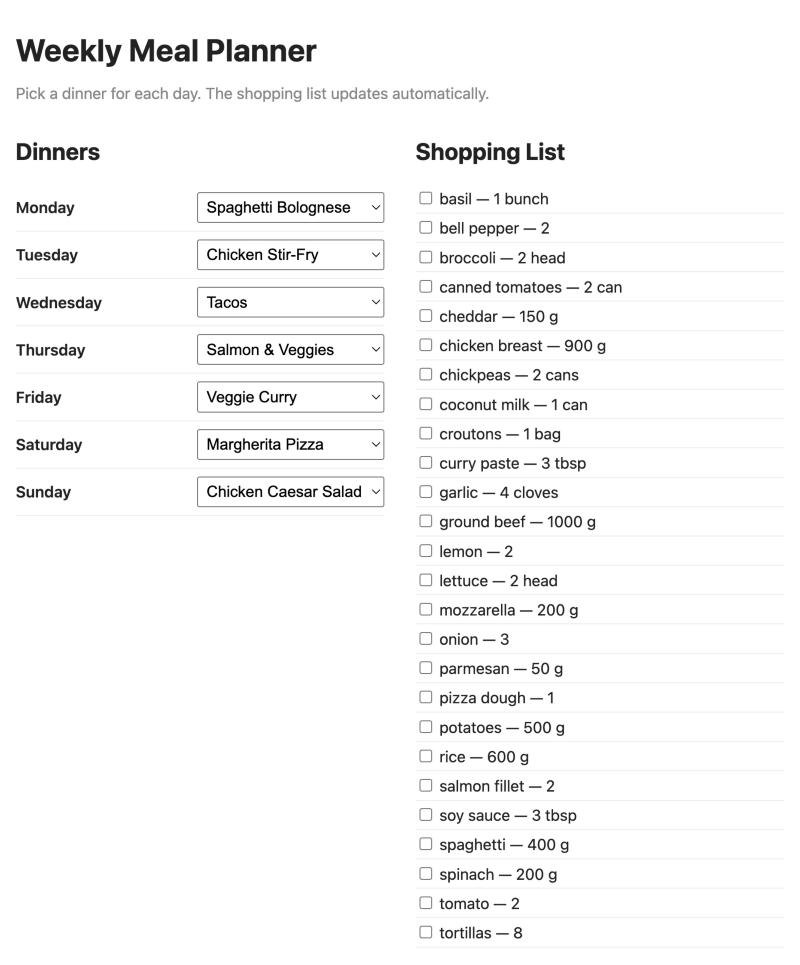
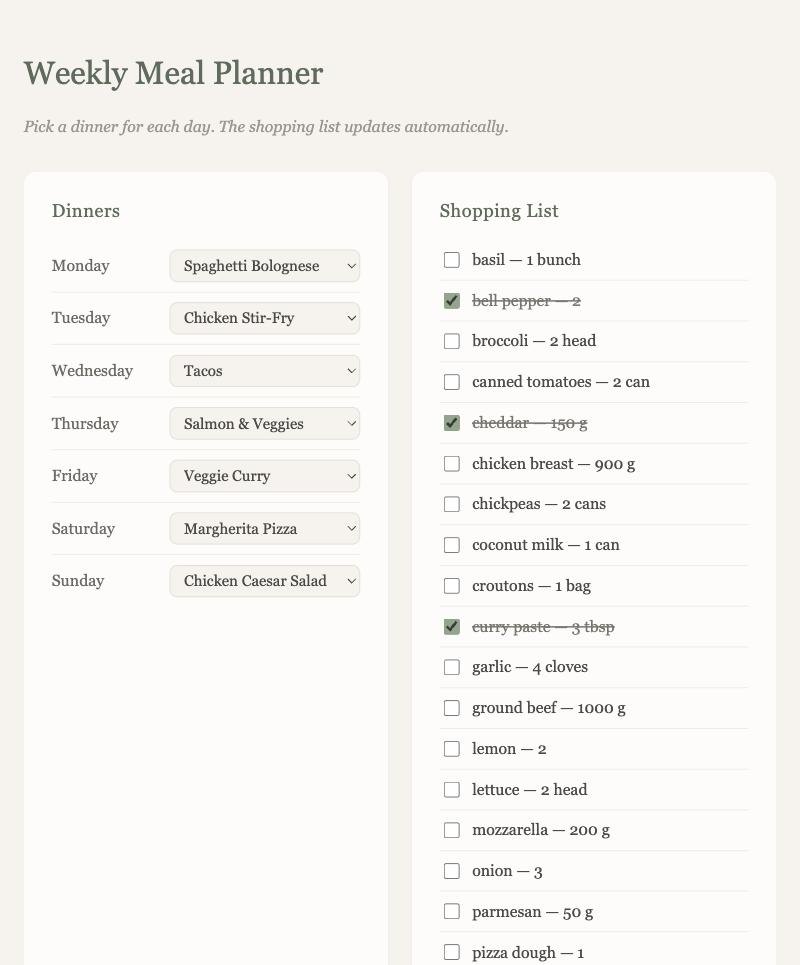
Real screenshots: Claude Code built both from the two sentences above.
Save your work on GitHub
Goal: never lose a version that worked.
GitHub is where most of the world's code lives. Think of it as save points for your projects, kept safe online.
Each dot is a save point. When a change breaks something, you go back to the last one that worked.
The program that keeps every version of a project.
One save point, with a short note about what changed.
The website that keeps your save points online.
One project on GitHub. Private is just you. Public is anyone.
At github.com.
Start Claude Code in your app's folder, then type:
cd ~/my-first-app && claude
Ask for any change. When you like it, say commit this. If a later change breaks something, say go back to the last version that worked.
Codex works the same way. Ask it to commit after changes you like.
Your badge shows up here.
Five rules of thumb
- Say the result you want, not the steps.
- Give it the real stuff: the actual file, an example of good.
- Ask for a plan first when it changes files or can't be undone.
- Make it check: "how do you know that worked?"
- Small steps. Get a simple version working, then add to it.
Passwords, bank logins or card numbers. Type those yourself, and read messages before anything gets sent.